
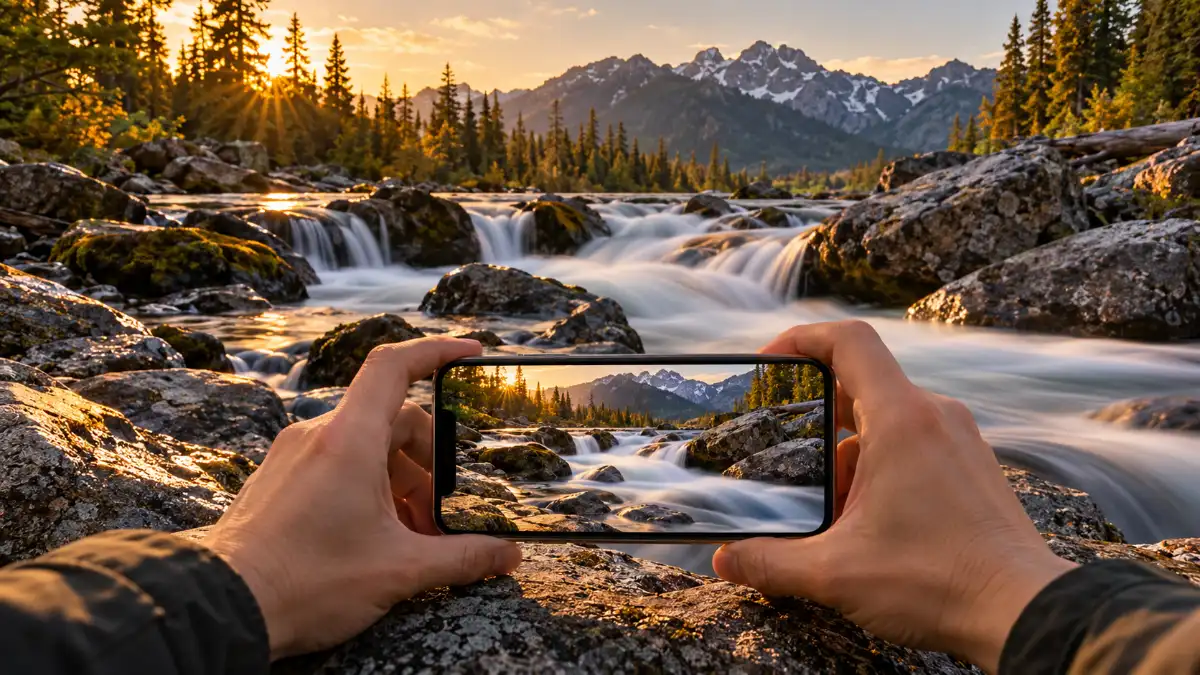
You do not need a DSLR, a bag full of filters, or even a basic camera app. I have given good suggestions about long exposure star trail and time-lapse photography on iPhone. The easiest starting point for most beginners is built into iOS: take a Live Photo, open it in Photos, and select the Long Exposure effect.
This technique is especially helpful with water, fountains, crowds, and anything where a portion of the frame moves while the rest hold still.
Now there is one key difference, however. Unlike traditional cameras, though, the stock iPhone Camera app isn’t just opening its shutter for a few seconds. Apple calls the Long Exposure option a type of Live Photo effect that mimics long exposure iPhone , such as on an SLR camera (which causes motion blur).
So how to use it in the right way,y not just search out where the button
Can You Take Long Exposure Photos on an iPhone?
Yes.
The simplest method utilizes Live Photos. A Live Photo captures a few seconds before and after you press your shutter button. Currently, Apple’s documentation says it captures around 1.5 seconds before and after the photo is snapped. That motion can then be interpreted and translated into a Long Exposure effect in the Photos app.
There are also third-party camera apps available that allow more flexibility with respect to motion blur, light trails, and long exposure,e which looks longer. Those come in handy once the native effect is not potent enough.
Think of iPhone long exposure photography like three levels.
Long Exposure from a Live Photo – fastest and easiest way.
Dedicated slow-shutter apps – more control of the effect.Apps, and tripod/filter,s etc. – intricate work in more difficult lighting conditions & creative work.
If you have not done the technique before, begin with number one.
How Apple’s Long Exposure Effect Works
Imagine photographing a stream.
In a normal photo, the camera captures water only at one moment in time. The individual splashes and ripples are still relatively clear-cut.
Long Exposure extends the movement within that Live Photo so it looks more like flowing water. In the meantime, still parts of the scene – rocks, a bridge, a wall – are allowed to retain their sharpness, provided that your phone has not moved.
What makes the effect believable is that contrast.
This kind of thing works with cars driving down a street, people crossing through a plaza, waves washing around rocks, or water spraying off the face of a fountain.
How to Take a Long Exposure on iPhone Without an App
The immediate technique that is built-in you can try in minutes.
Step 1: Open Camera and Enable Live Photos
Make sure you open the Camera app and keep it in Photo mode.
Ensure that Live Photos is turned on. In current versions of iOS, Live Photo controls are available via the Camera controls. Apple says Live Photos are typically on by default, based partly on the Camera settings you’ve saved.
Do not panic if the control seems in a slightly different location than what you have seen on screens. Apple sometimes re-arranges Camera controls between iOS releases. All that matters is having Live Photo on prior to the capture.
Step Two – Pick Something Actually Moveable
This may sound simple, but this is where many disappointing attempts begin.
Useful movement is required for a long exposure effect.
Good first subjects include:
a fountain
a small waterfall
a creek
ocean water moving around rocks
people walking through a plaza
cars moving along a street
Long Exposure will not make a totally motionless scene dynamic if you attempt to do so later.
Moving water is probably the easiest subject for your first try. The Are your paid search ads effective over time dynamics appears less artificial since it moves continuously and predictably.
Step 3 – Fix Your iPhone
The subject can move. Your phone ideally isn’t.
Tripods are nice, but they should not be your only option. If needed, you can also prop the phone against a railing or push it firmly to rest on top of a wall-if you need something secure but flat without actually needing the camera. In other words: place your device on a table and hold steady with another stable object (like someone else).
So the idea is straightforward: to make sure any portion of the scene that stays remains at its original position during Live Photo.
Everything, including rocks, buildings, and even pavement, may blur along with your subject if the phone is in motion. After that, the image appears unstabilized as opposed to being on purpose long-exposed.
Step 4 – Take the Live Photo
Make sure to frame your scene before touching the shutter.
Be on the lookout for an arrangement with a mix of movement and something firm. Just as a waterfall that is framed by the rocks it flows between works better than an image of nothing but rushing water, because the rocks give your eye something to grab onto.
Shoot the shot, but then DON’T pull down or swing out on the phone
Since Live Photos capture moments before the actual shutter press, it helps to keep your phone steady during this tiny bit of time.
Grab a couple of two or three takes on your way. Movement will continuously change,e and one attempt may look much cleaner than the other.
Now that you have copied your image before all the edits, open Clarendon and then click on Step 5 – Apply Long Exposure in Photos.
At this point, go to the Photos app and open up that photo.
On Apple’s current interface:
Open the Live Photo.
At the top of your ima,ge tap Live Control
Choose Long Exposure.
At present, Apple has four Live Photo effects available: Live, Loop, Bounce,e and Long Exposure.
Results are applied in the post-processing stage of capture, so you can see if a motion works and whether or not to keep that effect.
What Makes a Good iPhone Long Exposure?
Finding the menu is the easy part. Choosing a scene that responds well to it matters more.
Movement + Stillness
Some of the strongest long exposure photographs contain two things at once:
something moving and something that isn’t.
Think of:
- water flowing around a stationary rock
- headlights moving past buildings
- pedestrians crossing in front of fixed architecture
- waves moving beneath a pier
The stationary object gives the viewer a visual reference. Its movement feels intentional.
If every part of the frame is soft, the viewer has no obvious way to tell whether the blur was deliberate or whether the camera simply moved.
Predictable Movement Usually Works Better
Not all motion behaves equally well.
A waterfall flows in roughly the same direction for the entire capture. Cars usually follow a road. Water in a fountain repeats a predictable path.
Now compare that with several children running in different directions or tree branches moving violently in gusty wind. The resulting blur may look fragmented or ghost-like rather than smooth.
That doesn’t mean irregular movement can never work. It simply means it is harder to control.
Best Subjects for Long Exposure iPhone Photos
Waterfalls and Streams
Water is the classic starting point because the transformation is immediately visible.
Try including rocks, roots, or the edge of the stream in the frame. Keep those elements sharp while the water softens around them.
Don’t assume the smoothest possible water is always the best result. A powerful waterfall often looks better when some texture remains.
Ocean Waves
Long exposure can turn breaking waves into softer streaks or create a mistier look around rocks.
Pay attention to the shoreline. If the camera moves, those rocks and cliffs will become soft too.
Also check the lens regularly. Sea spray can put tiny droplets on an iPhone lens, and those droplets become surprisingly obvious around sunlight and bright reflections.
Traffic and Light Trails
Cars are another popular subject.
The built-in Live Photo effect is worth trying first, especially if you simply want a sense of movement. If you’re trying to create long, continuous ribbons of headlights or taillights, however, a dedicated slow-shutter or light-trail app may offer more useful control.
Always photograph traffic from a safe location such as a sidewalk, legal overlook, or protected viewpoint. A photograph isn’t worth stepping into a roadway or unsafe median.
People and Crowds
Blurred pedestrians can make a static city scene feel busy and alive.
The trick is to give the image something stable to hold onto: a building, sculpture, storefront, staircase, or other stationary feature.
If everyone is moving randomly in several directions, the result can become messy. Predictable pedestrian flow tends to work better.
Fountains
If you’ve never tried the technique before, start here.
A fountain gives you:
- continuous movement
- a stationary base
- repeatable water patterns
- plenty of opportunities to reshoot
You can often practice without worrying about traffic, tides, or hiking to a waterfall.
Do You Need a Tripod for iPhone Long Exposure?
Not always.
But the more important the photograph becomes, the more useful stable support is.
For a quick fountain experiment, carefully bracing the phone against a solid surface may be enough. If you’re photographing traffic at night or trying to keep fine architectural detail sharp, a tripod becomes far more valuable.
| Shooting situation | Tripod importance | Why |
| Quick waterfall experiment | Helpful | Keeps surrounding rocks sharper |
| Fountain | Helpful | Makes repeated attempts easier |
| Traffic trails | High | Keeps buildings and roads stable |
| Crowd blur | Helpful | Preserves architectural detail |
| Controlled daylight exposure | High | Stability becomes more important |
| Casual Live Photo test | Optional | A solid surface may be enough |
If you do use a tripod, avoid jabbing the shutter button hard enough to shake the phone. Using a timer or another hands-off shutter method can help.
Why Your iPhone Long Exposure Looks Blurry
A long exposure is supposed to contain blur-but not necessarily everywhere.
The location and character of that blur tell you what went wrong.
Everything in the Photo Is Blurry
The most likely culprit is camera movement.
If the waterfall is soft and the rocks are soft, the phone probably shifted during capture.
Try again using a tripod or solid support.
Also check your lens. A fingerprint across an iPhone camera can make a photograph look hazy rather than obviously out of focus.
The Moving Subject Barely Looks Different
There may not have been enough useful motion.
A gently drifting subject may not change position much during the Live Photo. The same can happen if traffic is barely moving or water is almost still.
Try:
- waiting for stronger movement
- changing the angle
- choosing another subject
- using a dedicated slow-shutter app when you need more control
People or Objects Look Like Messy Ghosts
This usually happens when movement is irregular.
Someone walking steadily across the frame can create a readable blur. Someone stopping, turning, then moving toward the camera may leave a much stranger shape.
Shoot several versions. Timing matters.
The Background Isn’t Sharp
Camera shake is one possibility, but not the only one.
Check whether the “stationary” parts of your scene were actually stationary. Leaves, hanging signs, flags, grass, and tree branches may all be moving even when a building behind them is still.
Also make sure the lens is clean, and your intended subject is in focus.
Bright Areas Lose Detail
Moving water in direct sun, headlights, illuminated signs, and reflections can become very bright.
Watch the brightest areas before shooting. If they already look washed out on screen, reducing the exposure slightly or recomposing may preserve more detail.
There is no single exposure adjustment that works for every scene.
| What went wrong? | Likely reason | What to try |
| Entire frame is soft | Phone moved | Use firmer support |
| Motion effect is weak | Too little movement | Wait or change subjects |
| People look ghostly | Irregular motion | Change timing or composition |
| Stationary areas are soft | Shake, focus, or actual movement | Stabilize and recheck scene |
| Bright water loses detail | Highlights too strong | Lower exposure or recompose |
| Night lights look hazy | Dirty lens | Clean the camera lens |
Why Can’t I Find Long Exposure on My iPhone?
The first thing to check is the photo itself.
Make Sure the Image Is a Live Photo
Apple’s built-in Long Exposure effect is a Live Photo effect.
If the picture was captured as an ordinary still photo, you won’t get the same Live Photo effects menu afterward.
You can find your Live Photos in the Photos app under the relevant media type if you aren’t sure which images were captured that way.
Check Camera Capture Settings
Some camera settings prevent Live Photos from being used.
Apple currently states that Live Photos are not available when ProRAW or HEIF Max is turned on. Apple also confirms separately that ProRAW cannot be used with Live Photos.
If you’re shooting with a compatible Pro iPhone and can’t activate Live Photos, check your format and resolution settings.
Check Your iOS Interface.
Apple changes interface details over time.
If a tutorial shows a menu in a slightly different location, don’t assume your phone lacks the feature. Look for the Live Photo control within Photos rather than relying on an old screenshot.
Keeping iOS updated may also help ensure you’re following Apple’s current workflow.
Long Exposure vs Night Mode on iPhone
Long Exposure and Night mode solve different problems.
Night mode is designed primarily to help an iPhone capture photographs in low-light environments. On supported devices, it activates automatically when the camera detects that the scene is dark enough. Depending on the conditions, the capture may take several seconds.
The Live Photo Long Exposure effect is mainly about showing movement differently.
Apple also notes that if Night mode is active, turning on Live Photos manually deactivates Night mode. That is a useful reminder that they’re separate features, not two names for the same function.
| Feature | Long Exposure | Night mode |
| Main purpose | Creative motion blur | Better low-light capture |
| Good subjects | Water, traffic, crowds | Dark landscapes, interiors, streets |
| Uses Live Photo | Yes | No |
| Movement usually wanted? | Yes | Often no |
| Applied after capture? | Live Photo effect is | Night mode operates during capture |
If you’re photographing a dark but completely stationary skyline, Night mode usually makes more sense.
If your goal is to show water, cars, or people moving, the Long Exposure effect is the more relevant starting point.
Live Photo vs Long-Exposure App: Which Should You Use?
Start with the built-in method unless you have a reason not to.
| What you need | Live Photo Long Exposure | Dedicated app |
| Fastest setup | Excellent | More setup |
| No download | Yes | No |
| Beginner-friendly | Very | Depends on app |
| Waterfall experiment | Excellent starting point | Useful |
| Longer-looking traffic trails | Limited | Often better |
| Adjustable capture behavior | Limited | Usually greater |
| Advanced daylight work | Limited | More suitable |
A third-party app makes sense when you’re no longer asking, “How do I create this effect?” and start asking, “How do I control exactly how this movement looks?”
App features and pricing change frequently, so check current App Store details rather than relying on old articles or screenshots before paying for anything.
The iPhone Long Exposure Decision Guide
This is the simplest way to choose a method.
Start with the photograph you want-not the equipment.
| You want to photograph… | Start with… | Why |
| Waterfall | Live Photo Long Exposure | Continuous movement is easy to see |
| Fountain | Live Photo Long Exposure | Great practice subject |
| Stream | Live Photo Long Exposure | Water works well against stationary rocks |
| Moving crowd | Live Photo Long Exposure | Good movement/stillness contrast |
| Dark static skyline | Night mode | Motion blur isn’t the goal |
| Long traffic streaks | Slow-shutter/light-trail app | More control is useful |
| Daylight extended blur | App + stable support | Greater exposure control may be needed |
| Quick creative experiment | Live Photo | Nothing extra required |
The important lesson is that there is no prize for using the most complicated method.
Use the simplest technique that creates the photograph you want.
Quick Long Exposure iPhone Checklist
Before taking the picture, run through this list:
- Is something in the frame clearly moving?
- Is there a stationary object that can stay sharp?
- Is the camera lens clean?
- Is Live Photo switched on?
- Can I keep the phone stable?
- Are bright highlights already blown out?
- Will the movement continue long enough to create an effect?
- Can I safely take two or three versions?
- Would Night mode make more sense for this scene?
- Am I using an app only because I actually need more control?
If most of those questions have clear answers, you’re ready to shoot.
Final Tips for Better iPhone Long Exposure Photos
Don’t begin with the hardest possible subject.
Find a fountain, creek, or waterfall where the water moves continuously and something solid-a rock, ledge, wall, or fountain base-can remain sharp.
Take one normal image, then a Live Photo that you convert to Long Exposure. Compare the two side by side.
Look at more than the blurred water. Check the edges of rocks, the background, bright areas, and anything that should be sharp.
Once you can control that basic relationship between movement and stillness, move on to traffic, crowds, waves, and more advanced apps.
That is where long exposure stops feeling like an iPhone trick and starts becoming a photography technique.
- Read more: long exposure iphone
Frequently Asked Questions
Can you take a long exposure photo on an iPhone?
Yes. The easiest built-in method is to capture a Live Photo and apply the Long Exposure effect in Photos. Third-party apps can provide more control for specialized shots.
How do you turn a Live Photo into a long exposure?
Open the Live Photo in Photos, tap the Live control, and choose Long Exposure. Apple currently lists Long Exposure alongside Loop and Bounce as Live Photo effects.
Can you take a long exposure on iPhone without an app?
Yes. You can use Apple’s built-in Live Photo Long Exposure effect without downloading another camera app.
Why is Long Exposure not showing on my iPhone?
First, confirm that the image is a Live Photo. Also check whether settings such as ProRAW or HEIF Max prevented Live Photos from being used during capture.
Do you need a tripod for iPhone long exposure photography?
Not for every shot, but a tripod or solid support improves consistency because it keeps stationary parts of the scene from blurring due to camera movement.
Is iPhone Long Exposure the same as Night mode?
No. Long Exposure is a Live Photo effect intended to show motion differently. Night mode is designed primarily for low-light photography. Apple notes that manually enabling Live Photos while Night mode is active turns Night mode off.
Can you turn a regular iPhone photo into a long exposure?
Not with Apple’s built-in Live Photo Long Exposure effect if the image was captured only as a normal still. Third-party editing tools may simulate blur, but that is a different process.
What subjects work best for iPhone long exposure photos?
Moving water, fountains, streams, waves, passing traffic, and crowds are good starting subjects because they contain obvious movement.
Why does my iPhone long exposure look blurry?
If everything is blurry, the phone probably moved. If only the intended moving subject is blurred while stationary objects remain sharp, that’s usually the effect you’re looking for.
When should I use a long-exposure app instead of Live Photos?
Use one when you want more control over how motion is recorded, longer or more pronounced light trails, or a more advanced daylight long-exposure workflow.
